Tiny Planes Taxiways Guide: Build Curved Routes That Flow
Learn how Tiny Planes taxiways work after the Build Update: draw curved paths, set one-way routes and hold points, and keep your airport traffic moving.
Jump to
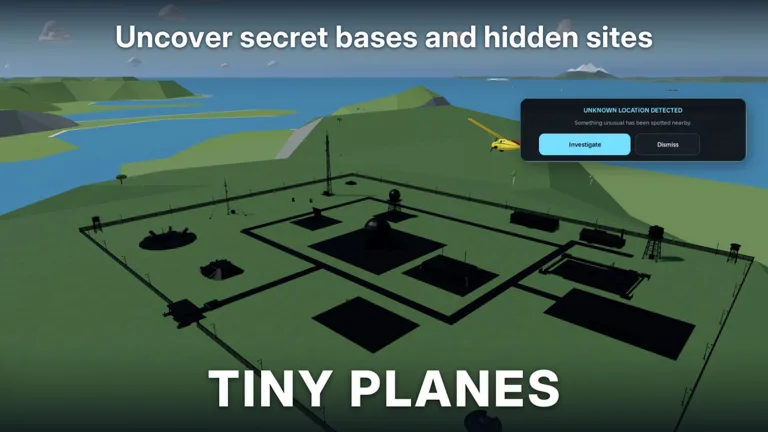
A runway gets planes into the sky, but the ground network decides whether your airport runs smoothly or turns into a parking lot. Tiny Planes taxiways got a complete overhaul with the Build Update. You now draw them freely instead of piecing together grid tiles, and you can tell your aircraft exactly how to move between stands and runways. If your fleet keeps growing, a clean layout is what keeps your routes on schedule.
How Taxiways Work After the Build Update
The Build Update is the newest version of Tiny Planes. It replaced the old tile-based build mode with a drawing tool:
- Click and drag to lay taxiways, roads and paths. They follow smooth curves at any angle you like.
- Junctions, crossings and runway entries connect automatically. You no longer have to hunt for corner pieces.
- Select mode lets you copy and paste sections, so you can build one good stand-and-taxiway cluster and then duplicate it.
- Undo and a snap toggle let you experiment freely. Turn snapping off when you want an odd angle, and turn it back on when you want things lined up.
- Save slots for layouts let you keep your current airport while you sketch a new design.
Your old airport stays exactly as you built it, so you don't have to rebuild anything.
Controlling Ground Traffic
The real upgrade is that you now decide how planes taxi, take off and land. Three tools do the heavy lifting:
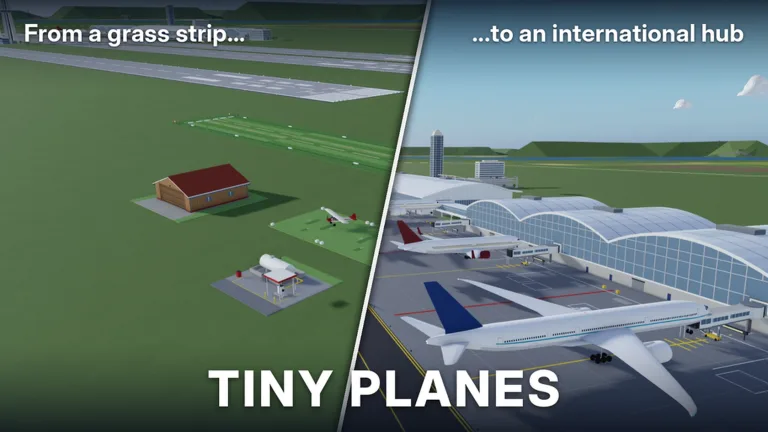 Image: Roblox / XeroInteractive
- One-way taxiways: Set an inbound lane and an outbound lane so arriving and departing aircraft never meet nose to nose.
- Hold points: Place these before runway entries so departing planes wait short of the runway instead of rolling onto it.
- Runway roles: Give each runway a job, such as one for departures and one for arrivals. This matters once you run several flights at the same time.
Build a loop from the beginning. Run one one-way taxiway from the runway exit to your stands and a second one back to a hold point at the departure end. A loop like this scales much better than a single two-way strip as you add aircraft.
Runways, Aprons and Gates
Taxiways connect everything else, so it helps to know how the other pieces behave:
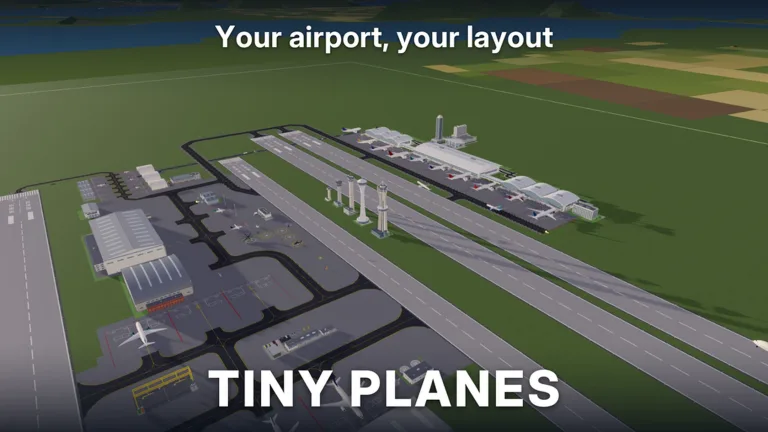 Image: Roblox / XeroInteractive
- Runways can be any length and any angle, and they can cross each other. You can add a second runway at an angle without breaking your existing taxiway network.
- Aprons and surfaces are now single stretchy pieces. Drag one across your whole airfield instead of tiling it square by square.
- Terminals use piers and concourses that snap together, with gates on both sides. Gates come with jet bridges that fit themselves to the parked plane.
Since piers carry gates on both sides, leave room for a taxiway on each side of the pier. That way aircraft can reach every gate.
Starting Small: Your First Taxiway
Early on, your airport is basic: grass, a tie-down stand and a grass taxiway, with a small Cessna or Piper doing the flying. Before you spend cash on more aircraft, follow these steps:
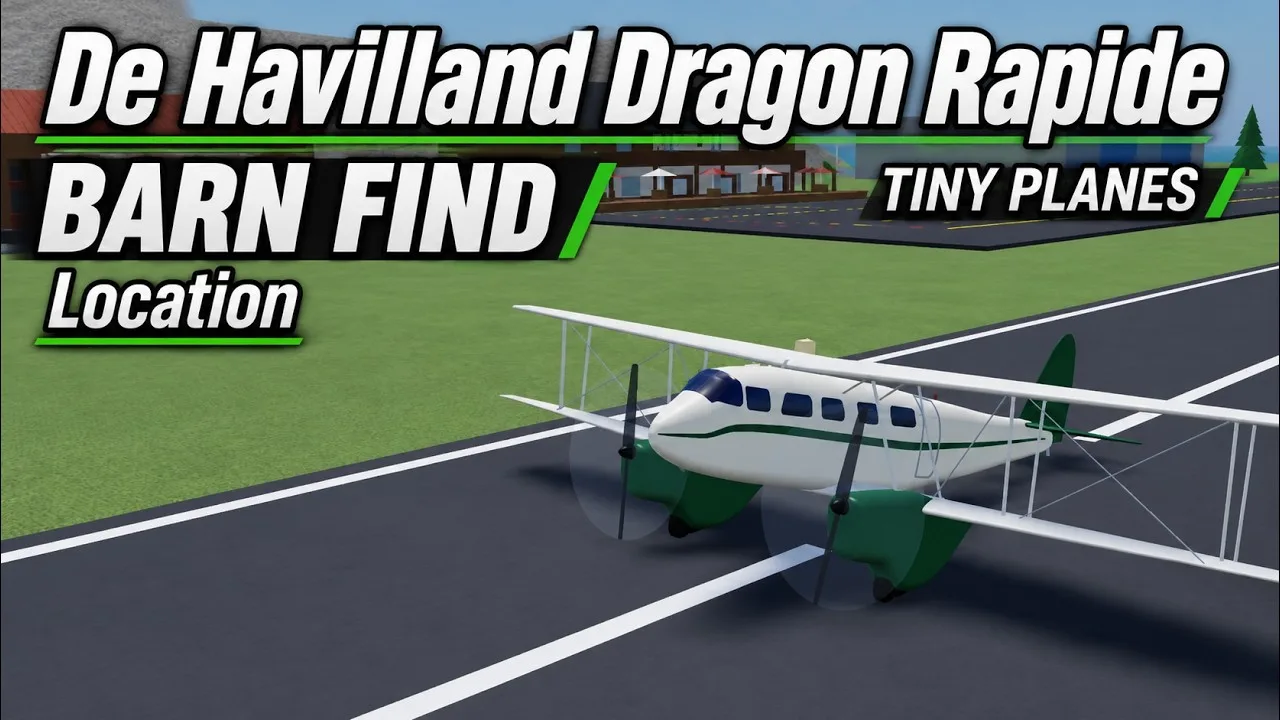
- Check each stand's direction. Make sure a plane can roll straight from the stand onto the taxiway.
- Add a taxiway segment every time you add a stand. A stand without a taxiway connection just sits there unused.
- Plan for growth. If you plan to add a second runway later, keep it away from your first one and leave space between them for a connecting taxiway.
Cash pays for new airports, extra airplane slots and fleet upgrades, so careful early planning saves money you would otherwise spend tearing things down.
Freebuild and Building Passes
The standard grid works fine, but a few game passes change how much freedom you have:
| Pass | Price | What it does |
|---|---|---|
| Freebuild | 99 Robux | Removes the grid and collisions. Runways, taxiways and stands still collide so your aircraft don't hit each other |
| Creative Bundle | 199 Robux | Includes Free Build, Colour Wheel and Paint Finishes |
| Extra Saves | 29 Robux | Adds more save slots |
Even with Freebuild, taxiways keep their collision. You can pack hangars, towers and lights tightly around them, but ground traffic stays safe. You can make those custom structures with resized, rotated and painted parts. All passes are available on the official Tiny Planes page on Roblox.
FAQ
Will the Build Update break my existing taxiways?
No. Everything you built before the update stays exactly as it was. You can rebuild sections with the new drawing tools whenever you want.
Can taxiways cross runways?
Yes. Runway entries and crossings connect automatically when you draw a taxiway into a runway. Runways can also cross each other.
Can friends use my taxiways in multiplayer?
Servers hold up to 5 players, and each player has their own island. Friends can fly to your airport and land there, so a clear taxiway layout helps visitors as well.
Continue with
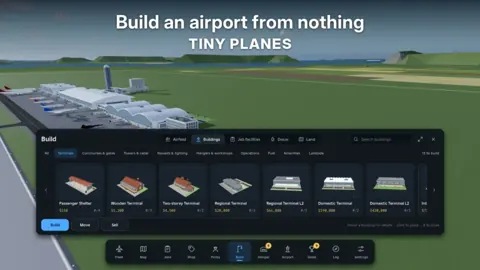 Tiny Planes Terminals: Build Update Gates, Piers & TipsTiny Planes terminals got a major boost in the Build Update. Learn how piers, gates and jet bridges work, plus what to build around your new terminal.
More in Airports
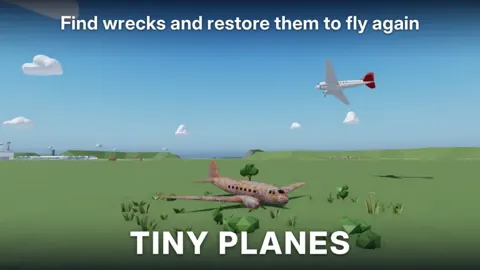
Tiny Planes Airport Designs: Build a Smarter Airfield
Plan better Tiny Planes airport designs with layout tips for runways, terminals, hangars and fuel stations, plus build tools, Freebuild and codes for cash.
Tiny Planes Airports Guide: Build a Money-Making Airfield
This Tiny Planes airports guide covers runways, stands, terminals, the Build Mode rework, and dispatch tips to grow your airfield and fleet fast on Roblox.
Tiny Planes Custom Hangars: Build Guide and Placement Tips
See how Tiny Planes custom hangars work after the Build Update: resize, rotate and paint parts, plan your airfield layout, and fund it with cash codes.
Tiny Planes Runways: How to Build and Lay Out Your Airfield
Learn how Tiny Planes runways work after the Build Update: draw them at any angle, set runway roles and hold points, and lay out a busier airfield fast.
Join the community
Official channels for news, updates and player help: