Tiny Planes Runways: How to Build and Lay Out Your Airfield
Learn how Tiny Planes runways work after the Build Update: draw them at any angle, set runway roles and hold points, and lay out a busier airfield fast.
Jump to
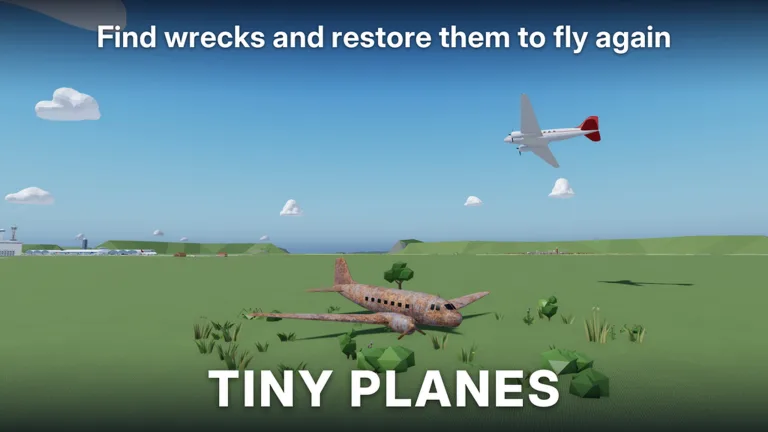
The runway is the first thing the game asks you to build, and your Tiny Planes runways are where your own fleet takes off and touches down. Get them placed well and the rest of your airfield (taxiways, stands, terminals) has room to grow around them. Since the Build Update, you have far more freedom over runway length, angle, and traffic flow.
How Runways Fit Into Your First Airfield
The tutorial has you lay a runway before anything else, which tells you how central it is. Here's the opening sequence:
- Open build mode and place your first runway where the yellow markers point.
- Follow the remaining yellow markers to add a taxiway and a tie-down stand.
- Head to the shop and claim the free starter plane.
- Recruit a pilot and assign them to the aircraft.
- Dispatch the plane on its first flight.
The early pieces include grass and a grass taxiway, and your first planes are light aircraft like a Cessna. Once you reach the airport level objectives (the early goals include reaching airport level three and flying to three different airports), start planning a bigger paved runway with room for terminals around it.
What the Build Update Changed
The current version of Tiny Planes is the Build Update, a full rework of build mode. Runway building is now a draw-and-drag system instead of snapping fixed pieces together:
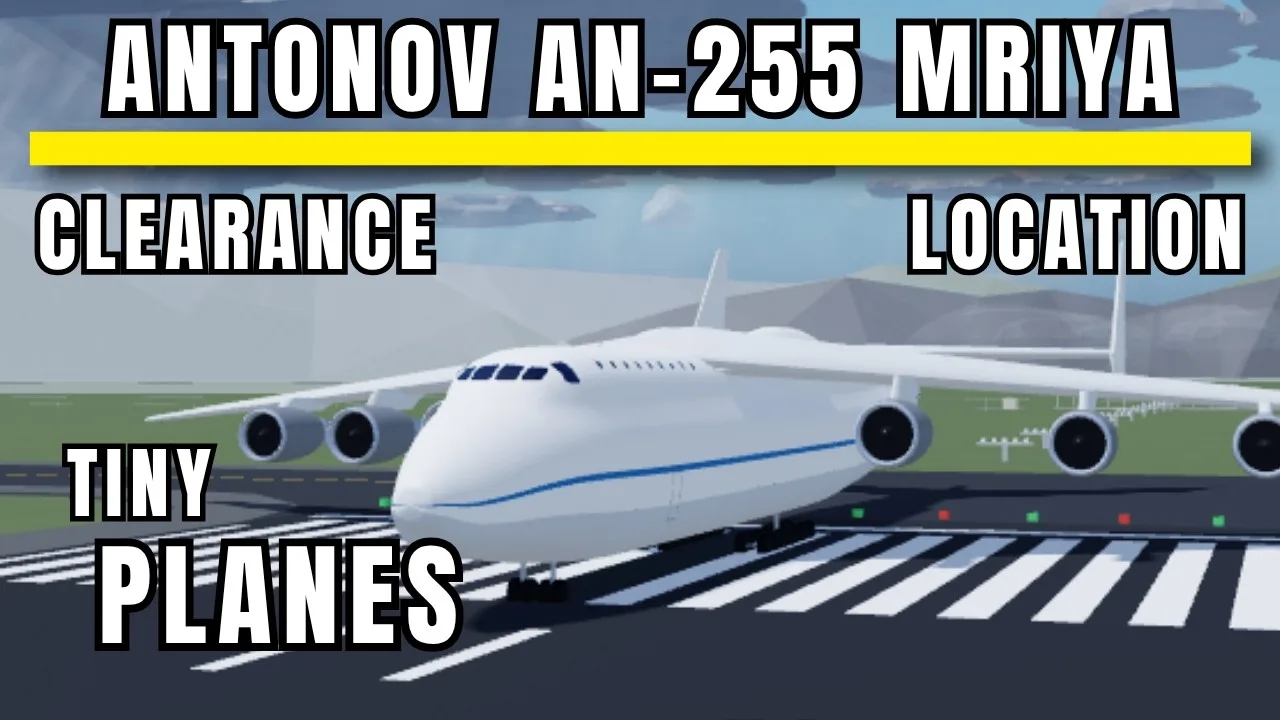
- Runways your way: any length, any angle, and runways can cross each other.
- Curved taxiways, roads, and paths: click and drag with smooth curves at any angle.
- Automatic connections: junctions, crossings, and runway entries link up on their own, so you no longer hunt for corner pieces.
- Stretchy floors: aprons and surfaces are single pieces you can drag across the whole airfield.
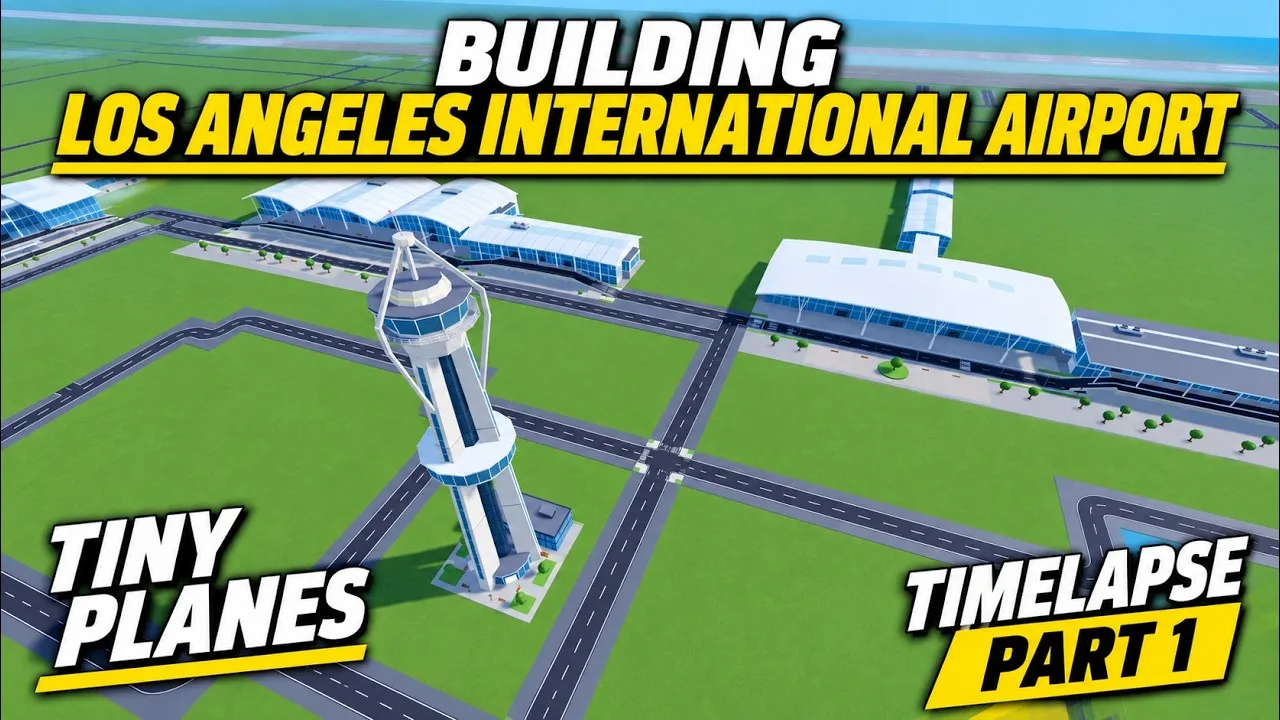
- Gates with self-fitting jet bridges: terminal piers and concourses snap together, with gates on both sides.
- Select mode: copy and paste, undo, a snap toggle, road-free versions of every building, and save slots for different layouts.
Anything you built before the update stays exactly as it was, so you won't lose an existing airfield.
Controlling Traffic on Your Runways
The Build Update also gives you real control over how planes move between stands and runways:
- One-way taxiways set the direction planes travel along a taxiway.
- Runway roles let you decide what each runway is used for.
- Hold points tell planes where to wait before entering a runway.
If you build two runways, assign each a role and add hold points at the entries. Run one-way taxiways in a loop from your stands to the runway and back so traffic only flows in one direction.
Layout Tips for a Busier Airport
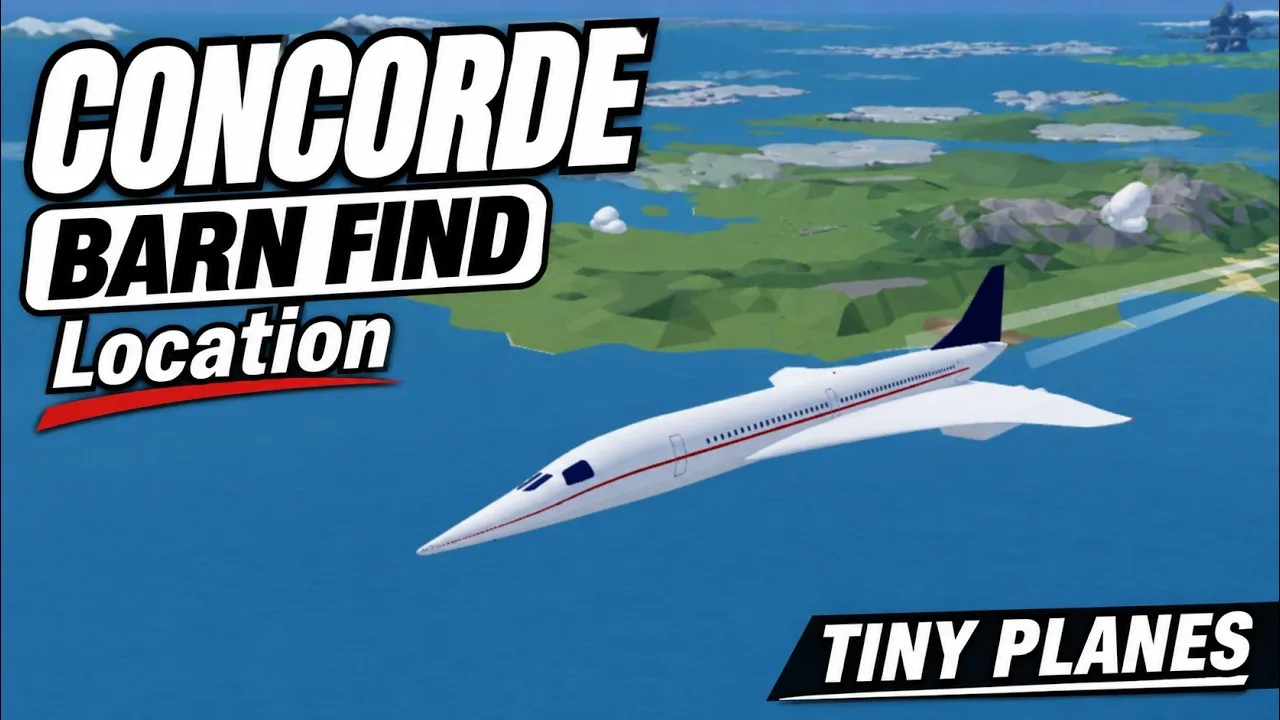
- Keep runways spaced apart instead of side by side so you have room for taxiways and stands between them.
- Use save slots to test a new layout without tearing down the one that works.
- Lean on undo and copy-paste when building rows of stands or repeating gate sections.
- Turn the snap toggle off for organic layouts, and on when you want neat alignment.
- Expand your plot of land before committing to a long runway so it doesn't box in future terminals.
Building costs cash, so pace your expansions around your income from contracts and jobs.
Freebuild and Building Passes
If grid limits and collisions frustrate you, these passes are sold on the Tiny Planes Roblox page:
| Pass | Price | What It Does |
|---|---|---|
| Freebuild | 99 Robux | No grid and no collisions, but runways, taxiways, and stands still collide so aircraft don't clip into each other |
| Creative Bundle | 199 Robux | Free Build, Colour Wheel, and Paint Finishes |
Freebuild keeps collisions on runways, taxiways, and stands on purpose, so plan your pavement properly even with the pass.
Landing on Your Runways (and Other Airports)
You can fly any plane in your fleet yourself, and every manual flight ends with lining up on a runway. Default controls:
- Shift / Ctrl: throttle up / throttle down
- W / S: nose up / nose down
- A / D: roll left / right
- Space: brakes
- L: landing gear
- T: autopilot (pick a field to land at)
- M: map
- C: controls, V: camera, H: hide UI
Manual landings take practice. If you're struggling, hit T and choose your destination field. Autopilot turns to line up before it starts descending, then brings the plane down on its own, which saves you from restarting after a botched approach.
In multiplayer, up to 5 players each get their own island, and you can use a friend's airport as a landing site. You can also fly to each other's airports and team up on rescues.
Codes to Fund Your Runway Expansion
Building long paved runways and terminals eats cash quickly. Redeem these by clicking the Star icon at the top of the screen, typing into the Enter a code box, and pressing Redeem. Codes are case-sensitive.
| Code | Rewards |
|---|---|
| TINYBUILD3RS | 60K Cash |
| T1NYPL4N3S300K | 300,000 Cash, 1 Drone Case, Legendary Pilot |
| N0TS0T1NYPLANE3 | 5,000,000 Cash, 5 Livery Cases, 5 Drone Cases, 5 Shop Restock Tokens, 5 Recruitment Tokens, Legendary Pilot |
| 1KLIKES | Cash (scales with your level), 1 Livery Case, 2 Drone Cases, 4 Recruitment Tokens, 1 Legendary Pilot |
Redeem N0TS0T1NYPLANE3 right after the tutorial so you have cash on hand for runways, taxiways, and terminals.
Continue with
 Tiny Planes Taxiways Guide: Build Curved Routes That FlowLearn how Tiny Planes taxiways work after the Build Update: draw curved paths, set one-way routes and hold points, and keep your airport traffic moving.
More in Airports
Tiny Planes Airport Designs: Build a Smarter Airfield
Plan better Tiny Planes airport designs with layout tips for runways, terminals, hangars and fuel stations, plus build tools, Freebuild and codes for cash.
Tiny Planes Airports Guide: Build a Money-Making Airfield
This Tiny Planes airports guide covers runways, stands, terminals, the Build Mode rework, and dispatch tips to grow your airfield and fleet fast on Roblox.
Tiny Planes Custom Hangars: Build Guide and Placement Tips
See how Tiny Planes custom hangars work after the Build Update: resize, rotate and paint parts, plan your airfield layout, and fund it with cash codes.
Tiny Planes Terminals: Build Update Gates, Piers & Tips
Tiny Planes terminals got a major boost in the Build Update. Learn how piers, gates and jet bridges work, plus what to build around your new terminal.
Join the community
Official channels for news, updates and player help: